Table of Contents
ToggleA dead smart light, an unresponsive thermostat, or a lock that won’t unlock can turn home automation from convenient to frustrating in seconds. Unlike traditional home systems, smart devices depend on power, network connectivity, and proper configuration, and when one fails, troubleshooting often feels like guesswork. The good news: most smart home problems don’t require calling a technician. With some practical diagnostics and a methodical approach, homeowners can fix connectivity issues, reset devices, manage power problems, and know when professional help actually matters. This guide walks through the most common smart home repair scenarios and gives you the tools to solve them.
Key Takeaways
- Poor Wi-Fi connectivity is the root cause of 70% of smart home failures, making network diagnostics and a strong signal your first troubleshooting priority.
- Most smart home devices can be fixed through simple steps: restart your router, reset the device using the factory reset button (hold for 10–15 seconds), and verify the Wi-Fi signal strength at the device’s location.
- Replace batteries immediately when they drop below 10%, use high-quality alkaline or rechargeable NiMH batteries, and plug devices directly into wall outlets to avoid power drops that cause erratic behavior.
- Call a professional electrician for any smart home repair involving hardwired integration with electrical systems, such as smart thermostats connected to HVAC, to prevent damage and fire hazards.
- Homeowners can troubleshoot and resolve 80% of smart home problems without professional help by methodically addressing connectivity, power, and configuration issues.
Understanding Common Smart Home Device Failures
Smart home devices fail for a handful of predictable reasons: network dropout, power loss, app glitches, or misconfiguration. Unlike a broken window or a leaky faucet, these failures often happen silently, the device sits there, powered and connected to nothing, waiting for a command that never comes through.
Connectivity Issues and Network Problems
The number one culprit behind smart home failures is poor or dropped Wi-Fi connectivity. Smart lights, plugs, thermostats, and cameras all rely on a stable connection to your home network, and distance from the router, interference from other devices (microwaves, cordless phones), or simple dead zones kill the signal.
When a device stops responding, it usually isn’t broken, it’s offline. The app shows it as unavailable, or it fails to respond within a few seconds. Network problems can stem from a weak signal, an overcrowded 2.4 GHz band (many smart devices still use 2.4 GHz instead of 5 GHz), or a router that needs a restart. Sometimes the issue originates with your internet service provider: a brief outage can leave smart devices stranded even after power returns. Understanding that connectivity is the root cause of 70% of smart home complaints helps narrow down where to focus first.
Wi-Fi and Network Troubleshooting Strategies
Start with the simplest fix: restart your router. Unplug it, wait 30 seconds, and plug it back in. Many network hiccups clear themselves after a power cycle, and this step takes less than two minutes.
Next, check signal strength at the device’s location. Walk to where the problematic device sits and check your phone’s Wi-Fi signal bars. If the signal is weak (one or two bars), move the router closer, relocate the device to a stronger area, or consider adding a mesh Wi-Fi system to fill dead zones. Mesh networks like Eero, Ubiquiti, or TP-Link Deco extend coverage without creating separate networks, which confuses smart devices.
If signal isn’t the issue, log into your router’s settings and check for firmware updates. Outdated router firmware can cause compatibility issues with newer devices. Also verify that your router isn’t overcrowded on the 2.4 GHz band. Most smart home devices use 2.4 GHz because it offers better range than 5 GHz, but if you’ve got a dozen devices all competing for bandwidth, performance tanks. Some routers let you separate 2.4 and 5 GHz into distinct networks: create a dedicated 2.4 GHz “IoT” network and move smart devices there while keeping laptops and phones on 5 GHz.
If a single device keeps dropping offline while others stay connected, forget the network on that device’s app, restart the device, and reconnect it. During reconnection, stand close to the router. Finally, check whether the app itself needs updating, many connectivity problems resolve after updating the manufacturer’s app. These strategies address smart home tech tips for maintaining a robust network foundation.
Smart Device Reset and Reconfiguration
Sometimes a device gets stuck in a bad state and won’t respond even with solid connectivity. A reset clears corrupted settings and forces the device to start fresh.
Most smart devices have a factory reset procedure: hold the reset button for 10–15 seconds (check the manual for exact timing) until the light blinks a specific color or sequence. This wipes all settings, so the device reverts to its out-of-box state. After reset, you’ll need to reconfigure it, reconnect to Wi-Fi, sign into your account, and reassign it to rooms or automation routines.
Before resetting, remove the device from your account or app. Failing to do this can leave a “ghost” device that blocks you from adding it back under the same name. Once removed, perform the factory reset, then reinstall it as if it were brand new. This process usually takes 5–10 minutes and solves app crashes, unresponsiveness, and firmware conflicts.
For devices that won’t physically reset (some smart thermostats or hubs lack a reset button), check the manufacturer’s support page for a soft reset: sign out of the app, wait 24 hours, and log back in. This refreshes the connection without wiping settings. If a device has been offline for days, a full factory reset is often faster than troubleshooting blind. Smart home tech examples show how proper reconfiguration ensures reliable operation.
Power Management and Battery Solutions
Dead batteries and unstable power supplies silently kill smart devices. Battery-powered devices like door locks, motion sensors, and wireless buttons drain faster than expected, especially in cold weather, high-traffic areas, or when firmware updates run in the background.
Check battery level in the app first. Most smart devices display remaining battery percentage. If it’s below 10%, replace batteries immediately, don’t wait for complete failure. Use fresh, high-quality batteries (alkaline or rechargeable NiMH types work best: avoid mixing old and new). Some devices like smart locks drain batteries faster than advertised if poorly positioned (weak signal forces the radio to work harder) or if you’re using low-cost batteries that underperform.
For plugged-in devices, verify the power outlet actually works. Plug in a lamp to confirm. If the outlet is dead, check the circuit breaker, a tripped breaker might have flipped without you noticing. Don’t daisy-chain smart devices through power strips or extension cords: plug them directly into wall outlets. Power strips introduce voltage drops that can cause devices to brown out (operate at reduced power) and behave erratically.
For battery-powered hubs or routers, keep them plugged in at all times. These devices draw minimal power but need constant power to maintain network connectivity. If your hub restarts nightly, check the power adapter specifications, use only the correct adapter provided by the manufacturer. The wrong adapter can cause resets and data loss. Smart home tech strategies emphasize stable power as foundational to a reliable system.
When to Call a Professional vs. DIY Fixes
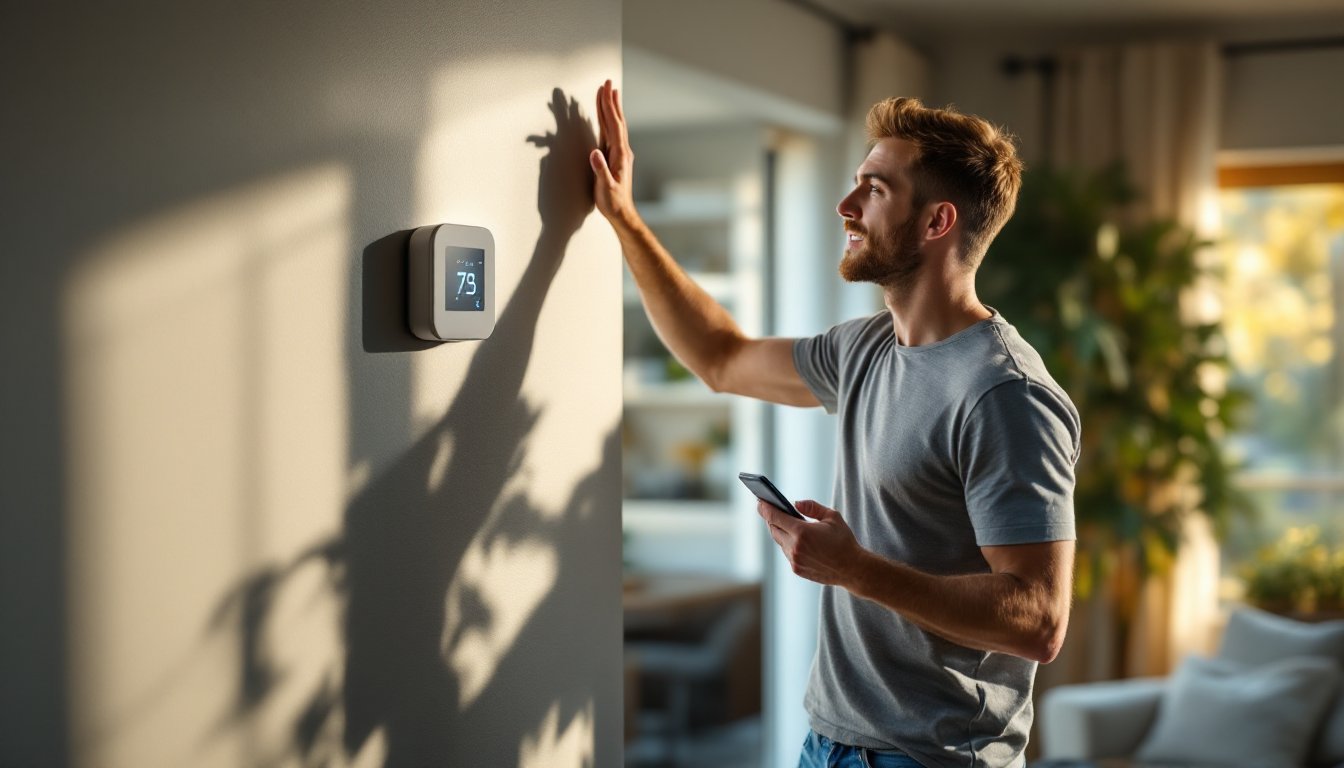
Some problems fall outside DIY scope. If your smart home setup involves hardwired devices integrated into your electrical system, like a smart thermostat tied to your HVAC system or a smart doorbell wired to existing chimes, incorrect installation can damage equipment or create fire hazards. Thermostats especially can trip your breaker or disable heating if wired wrong. When in doubt, hire a licensed electrician for any task involving 120V or higher circuits.
Network problems that persist after rebooting the router, forgetting devices, and checking signal strength often point to ISP outages, DNS failures, or modem issues, problems a professional can diagnose faster. If your internet cuts out every few hours, call your ISP before blaming smart devices.
Devices with water damage (smart shower speakers, outdoor cameras) should be set aside immediately. They’re usually not repairable and can create electrical hazards. Similarly, a device that smells burnt or shows physical damage (cracked casing, corrosion) shouldn’t be powered on again.
For app-only problems (you can’t log in, features are missing, automations won’t trigger), contact the device manufacturer’s support team. They can reset your account, restore settings, or identify server-side issues you can’t see. According to troubleshooting guidance from Tom’s Guide, knowing the boundary between simple fixes and escalation saves time and prevents damage.
Conclusion
Most smart home failures resolve with a router restart, a device reset, fresh batteries, or checking your Wi-Fi signal, fixes that take minutes and require no special tools. By working through connectivity, power, and configuration issues methodically, homeowners can troubleshoot 80% of problems without professional help. Keep the factory reset procedure and battery replacement cadence in mind as first-response tactics. Know when to stop troubleshooting and involve an electrician or manufacturer support. Building a reliable smart home means treating preventive maintenance seriously: update firmware regularly, monitor battery levels, and ensure your network stays strong.